



Download & Install
First, download the PokerStars software and click ‘Save File’ when prompted. The software will be saved to either your desktop or ‘Downloads’ folder. It may take a few minutes for PokerStars to download.
The PokerStars software is simple to use and available for download across a wide range of platforms. To start playing, download PokerStars now and install our software on your Mac. We’re also available Windows, iOS or Android devices. Ready to get started?
First, download the PokerStars software and click ‘Save File’ when prompted. The software will be saved to either your desktop or ‘Downloads’ folder. It may take a few minutes for PokerStars to download.

Select ‘Create your Stars Account now’. You will be asked to create a username and password.
Then select ‘Next’ to proceed to the ‘Your Player Details’ section. Enter a valid email address, your country of residence, and agree to our General Terms. Then simply select ‘Create Account’!
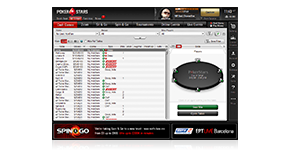
To find a game, use the tabs in the PokerStars lobby. From there you can select whatever game you want to play and set your limits.
You can also search for specific tables, limits or formats by clicking on your chosen game tab and then using the filter buttons to define your search.

PokerStars gives you access to the best and biggest games online. Whether you enjoy Omaha, Texas Hold'em, Stud, Draw poker, Mixed Games, Badugi, and much more, there's something for everyone. You can also play in a wide selection of languages and currencies. Just download our free software to start playing.

Every day millions of dollars is won on PokerStars by players just like you! From the World Championship of Online Poker (WCOOP) to the weekly Sunday Million, Spring Championship of Online Poker (SCOOP) to the Red Spade Open, we host the biggest online poker events all-year round and you can keep track of all the action via our easy-to-navigate online lobby.

PokerStars also offers you the chance to play in big-money live poker events in some of the world's most loved destinations. Play your way to annual tournaments in glamorous destinations via value-added qualifiers and satellites online.

PokerStars is also backed up by the industry's best online software and an award-winning support team. Our software is free to use, safe to play on and is unrivalled - with quick deposits and fast withdrawals as standard. But don't just take our word for it. Download the PokerStars software now and start your online journey!